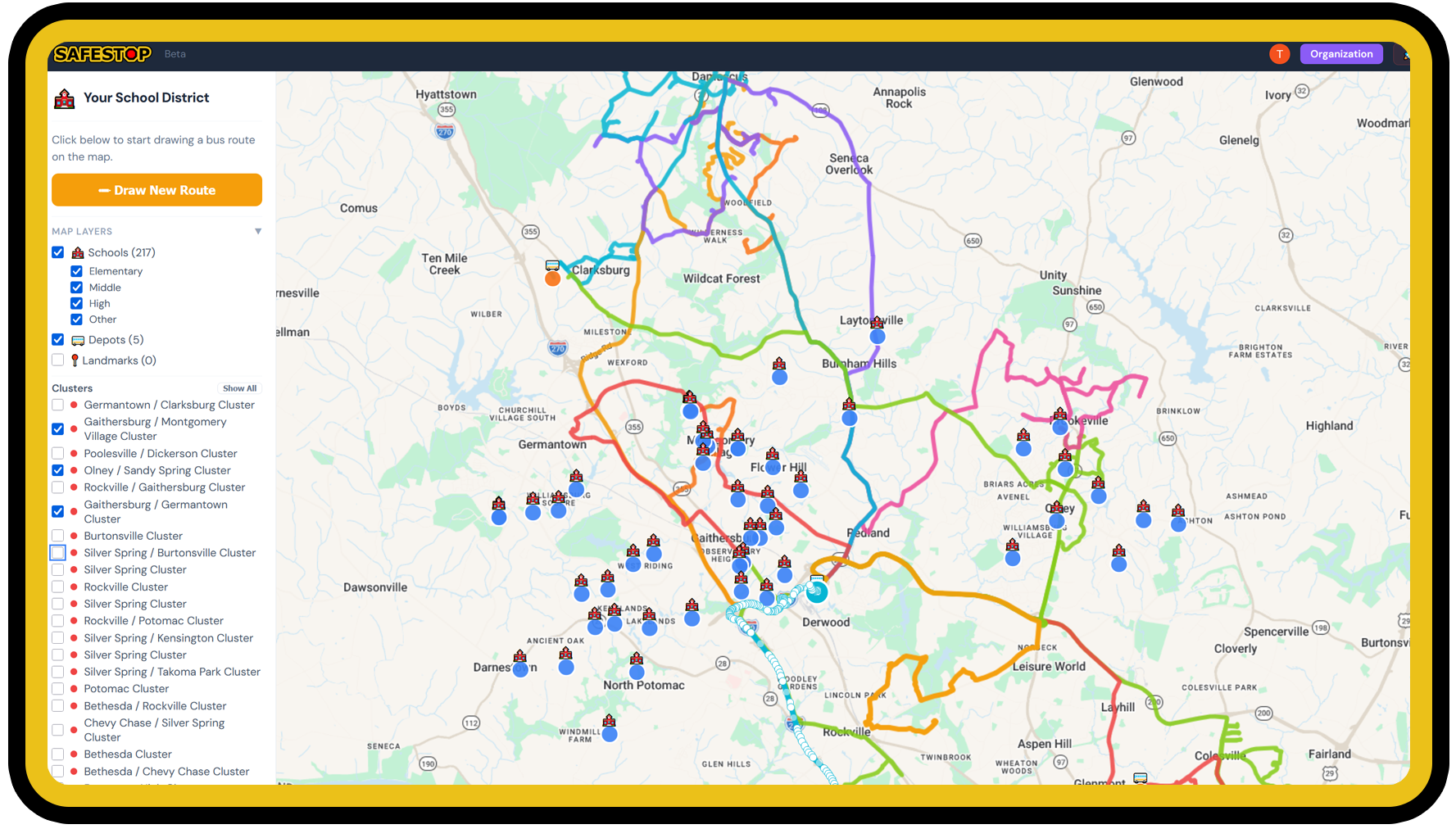
Now they can. SafeStop gives transportation teams the power to draw, optimize, simulate, and manage every route from one platform — so every bus runs smarter and every student gets home safe.
From importing student data to printing driver manifests, SafeStop handles the full routing workflow.
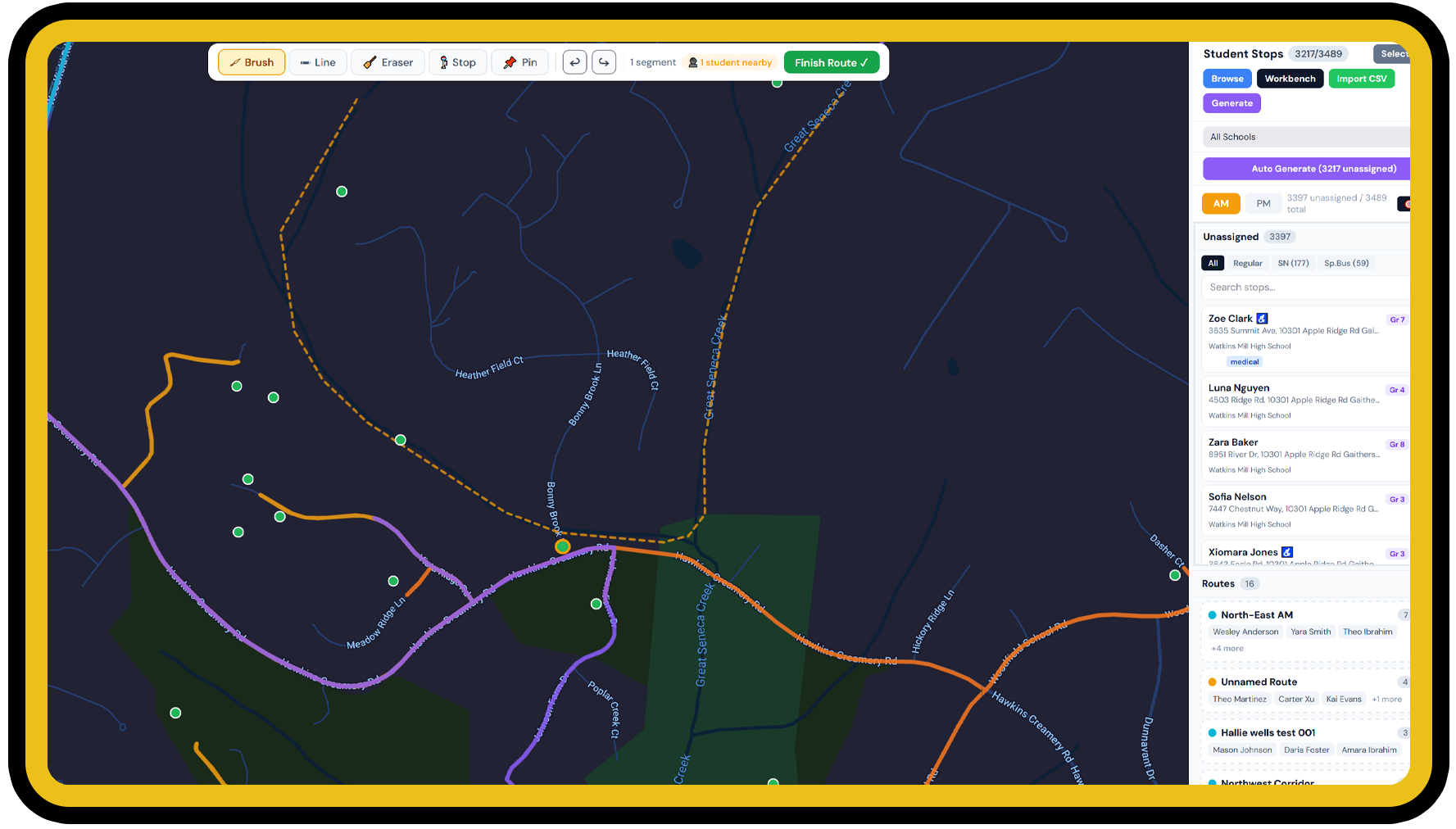
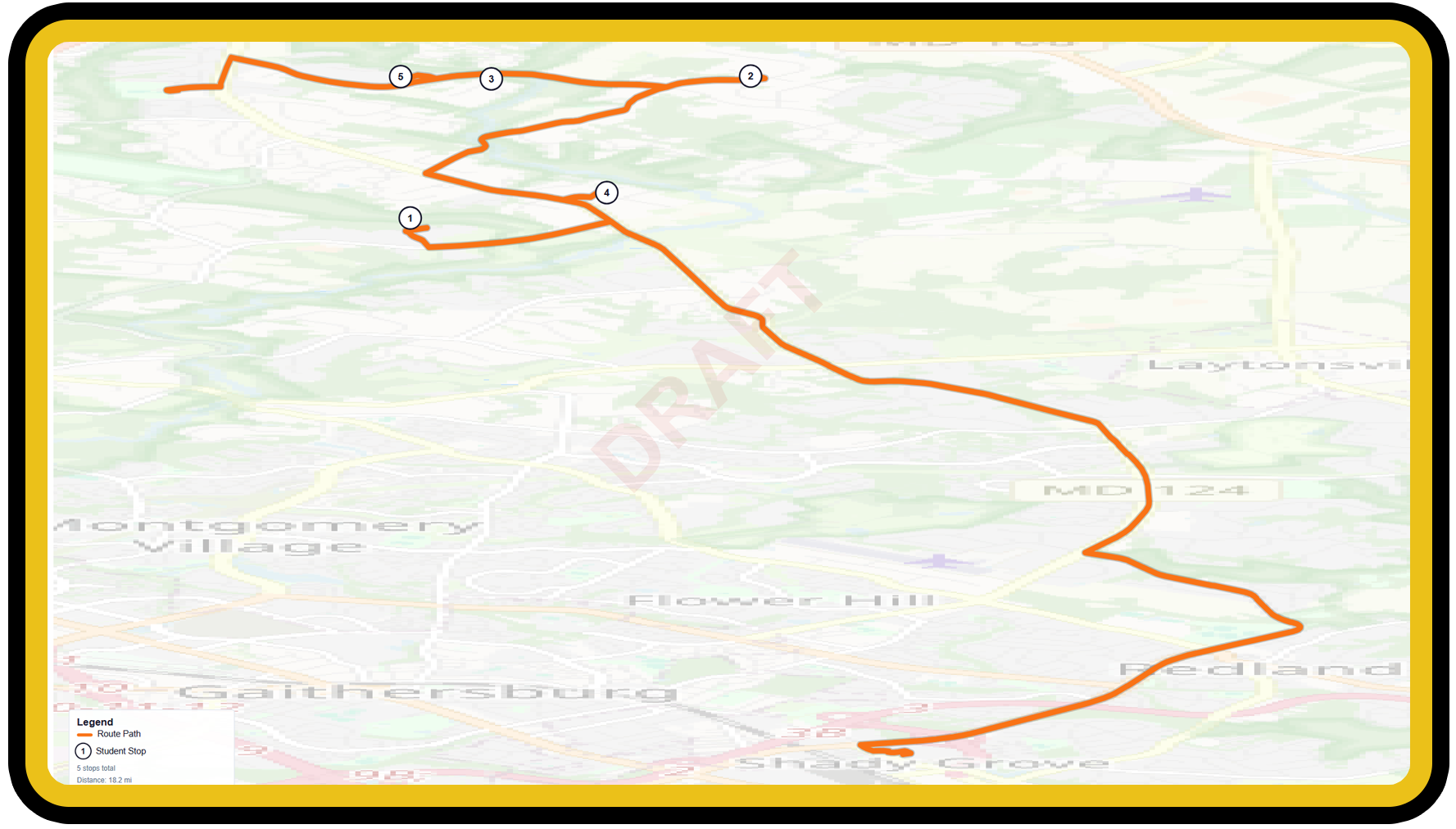
Draw routes directly on the map with brush, line, and eraser tools. Routes snap to real roads via Google Maps. Set start and end points at depots or schools — the app auto-generates the connecting path.
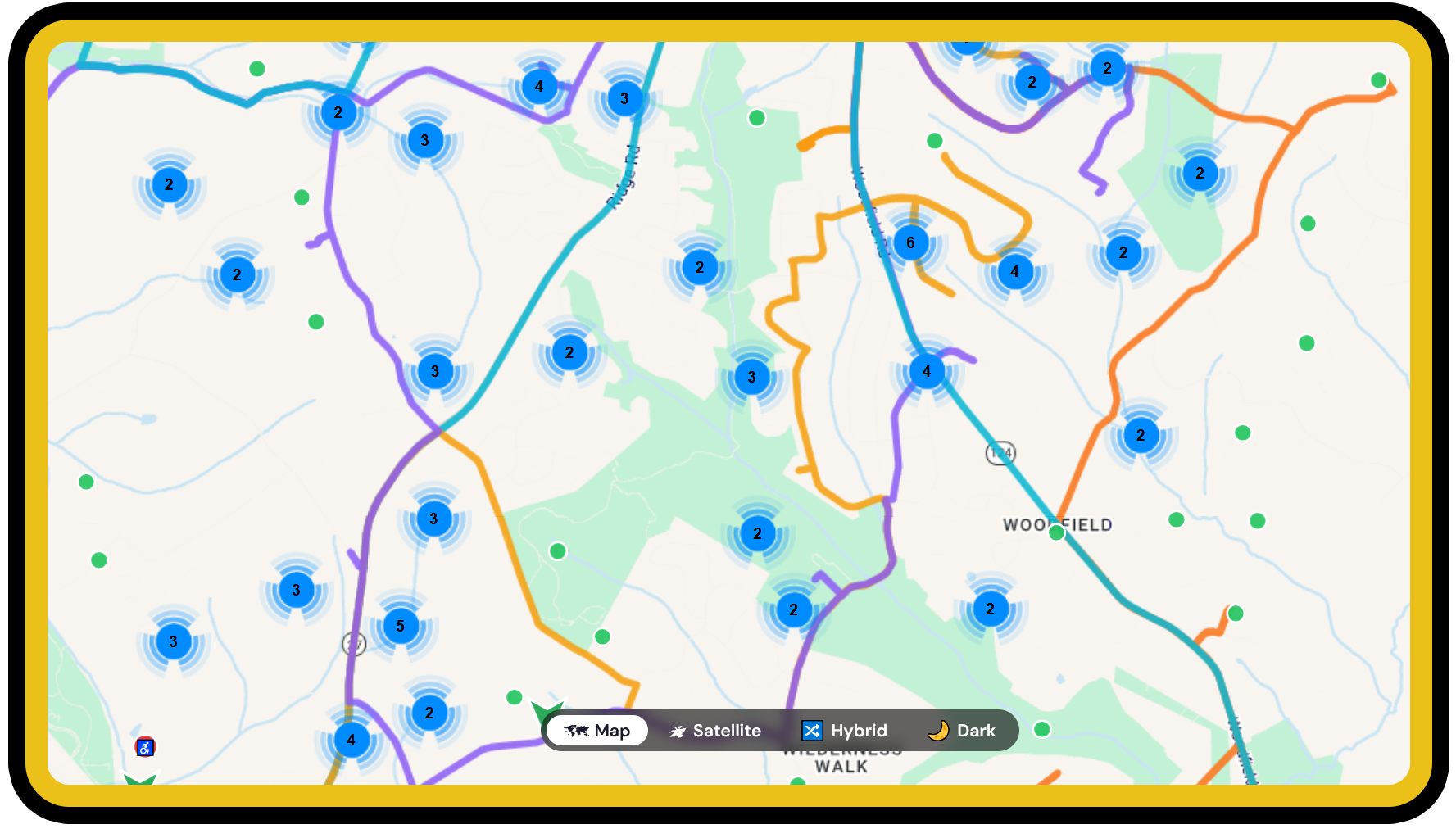
Place central bus stops on the map, then drag students to them. Students show dotted walk lines to their assigned stop. Stops get real cross-street addresses automatically via reverse geocoding.
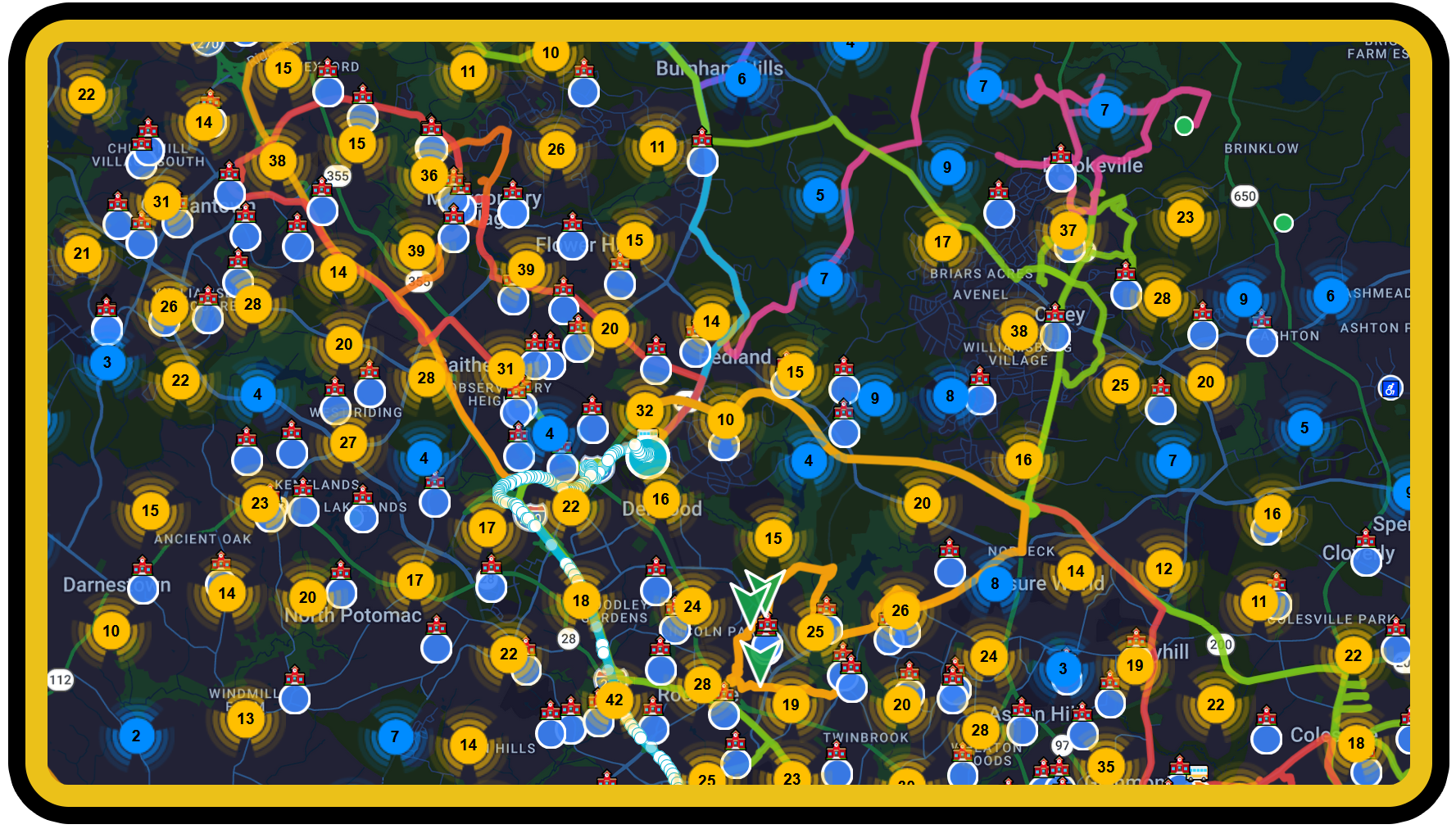
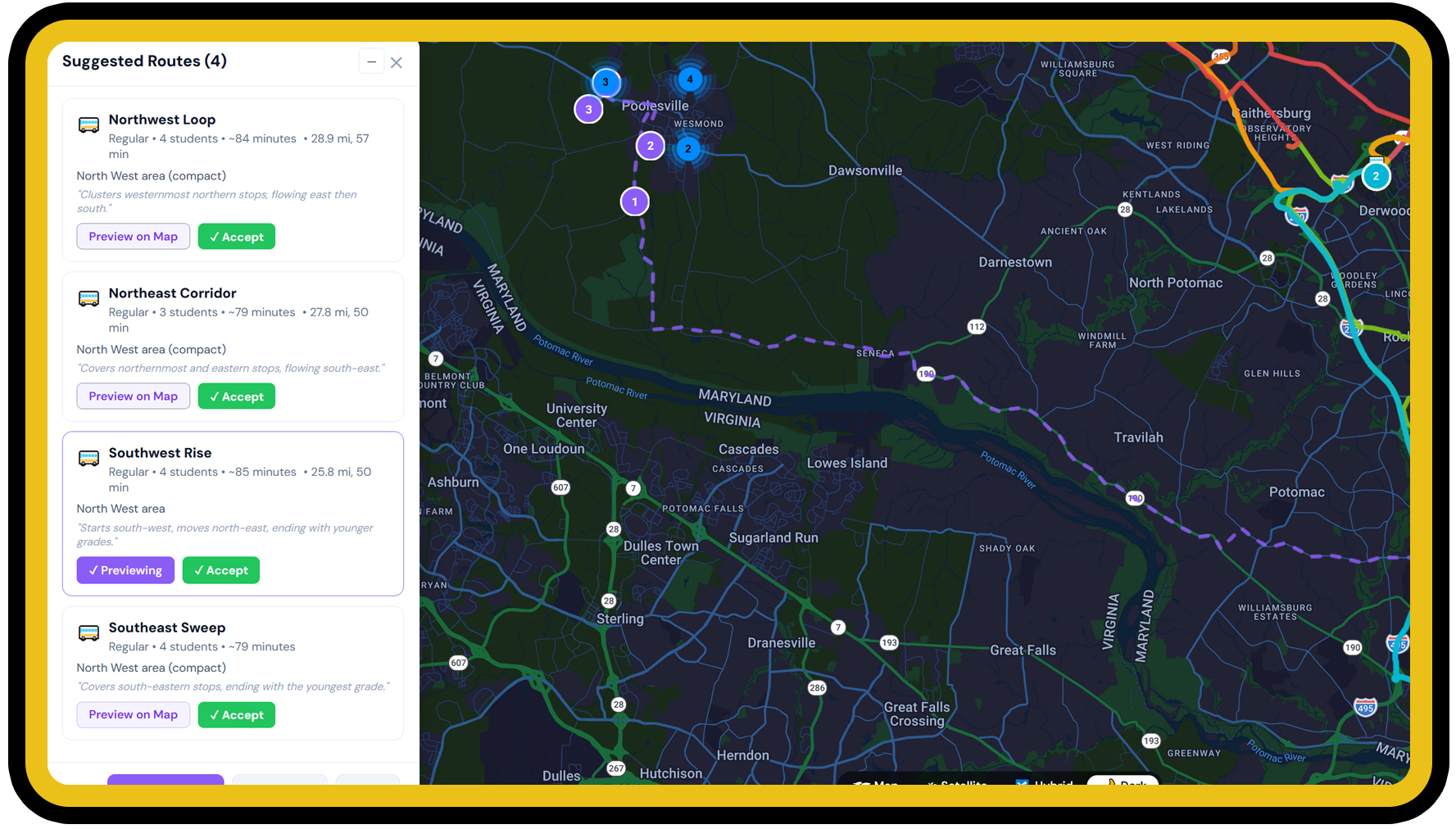
Select a school and let Gemini AI analyze student locations, cluster them geographically, and suggest optimized routes. Preview each suggestion on the map before accepting.
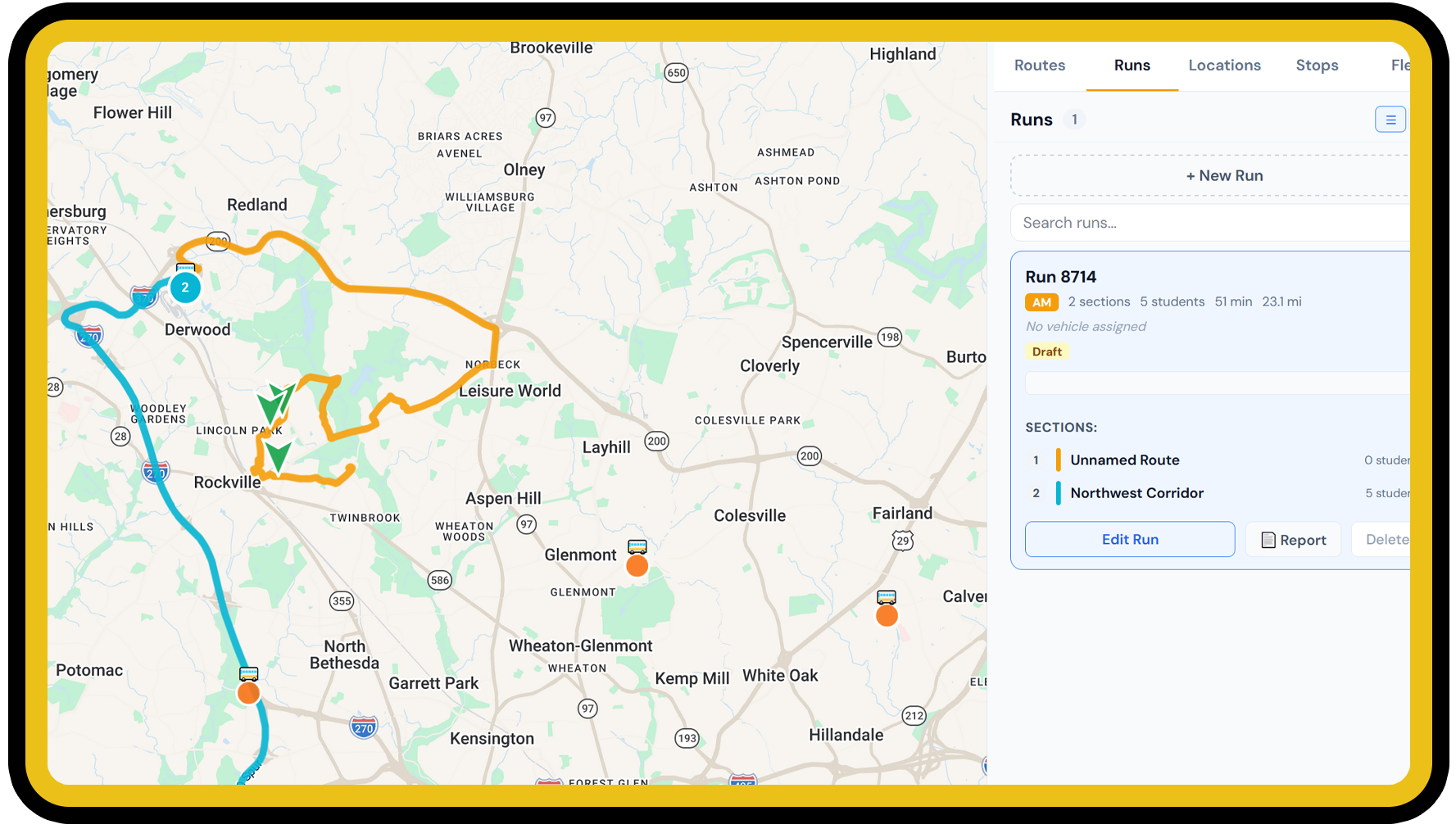
Assemble individual route sections into full bus runs: depot → high school pickup → middle school → elementary. Drag-and-drop sections, compute schedules, detect conflicts.
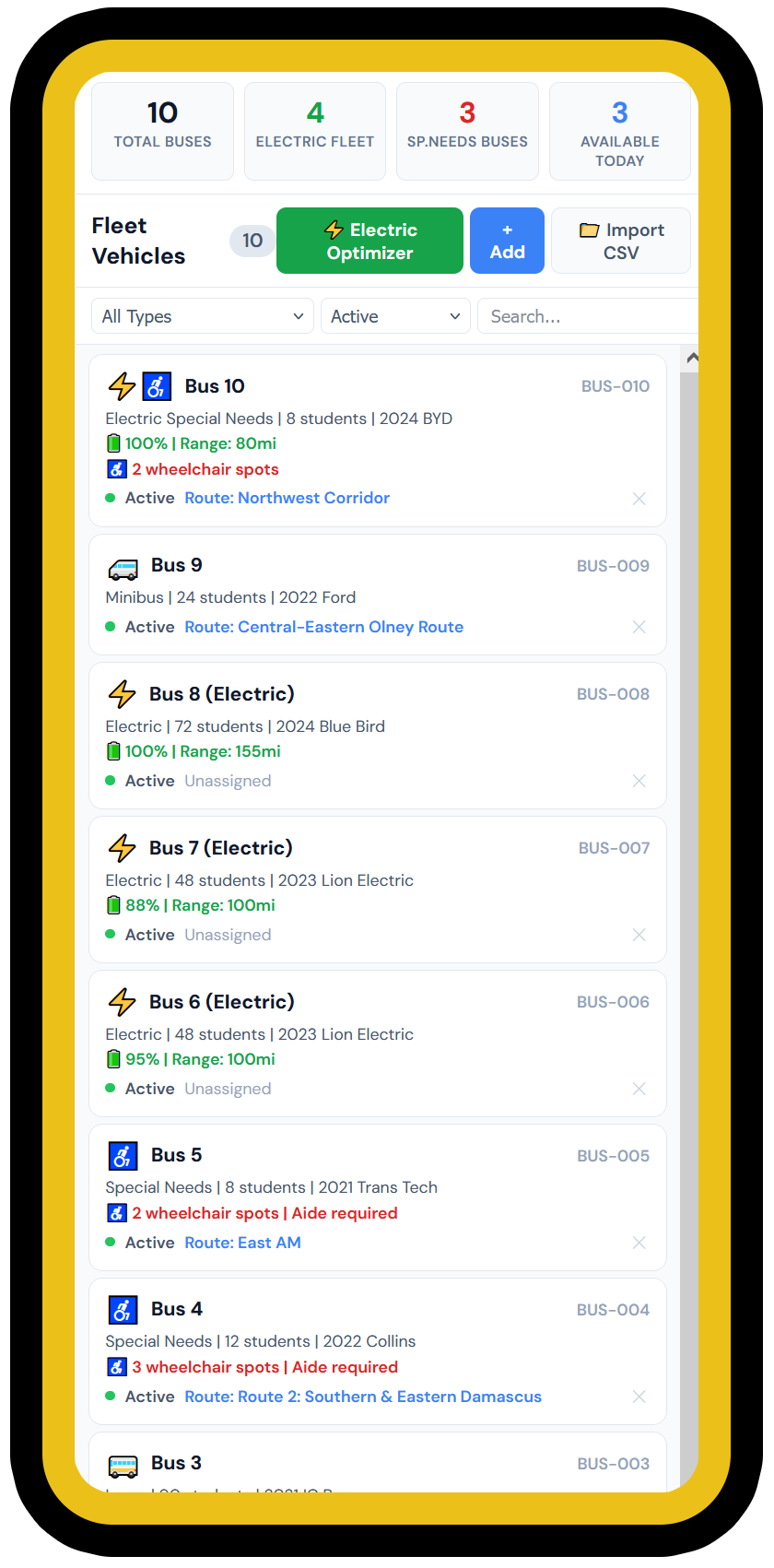
Track every vehicle — standard, special needs, electric. Monitor EV battery and range. Assign buses to routes or runs. Run fleet optimization to match vehicles to routes.
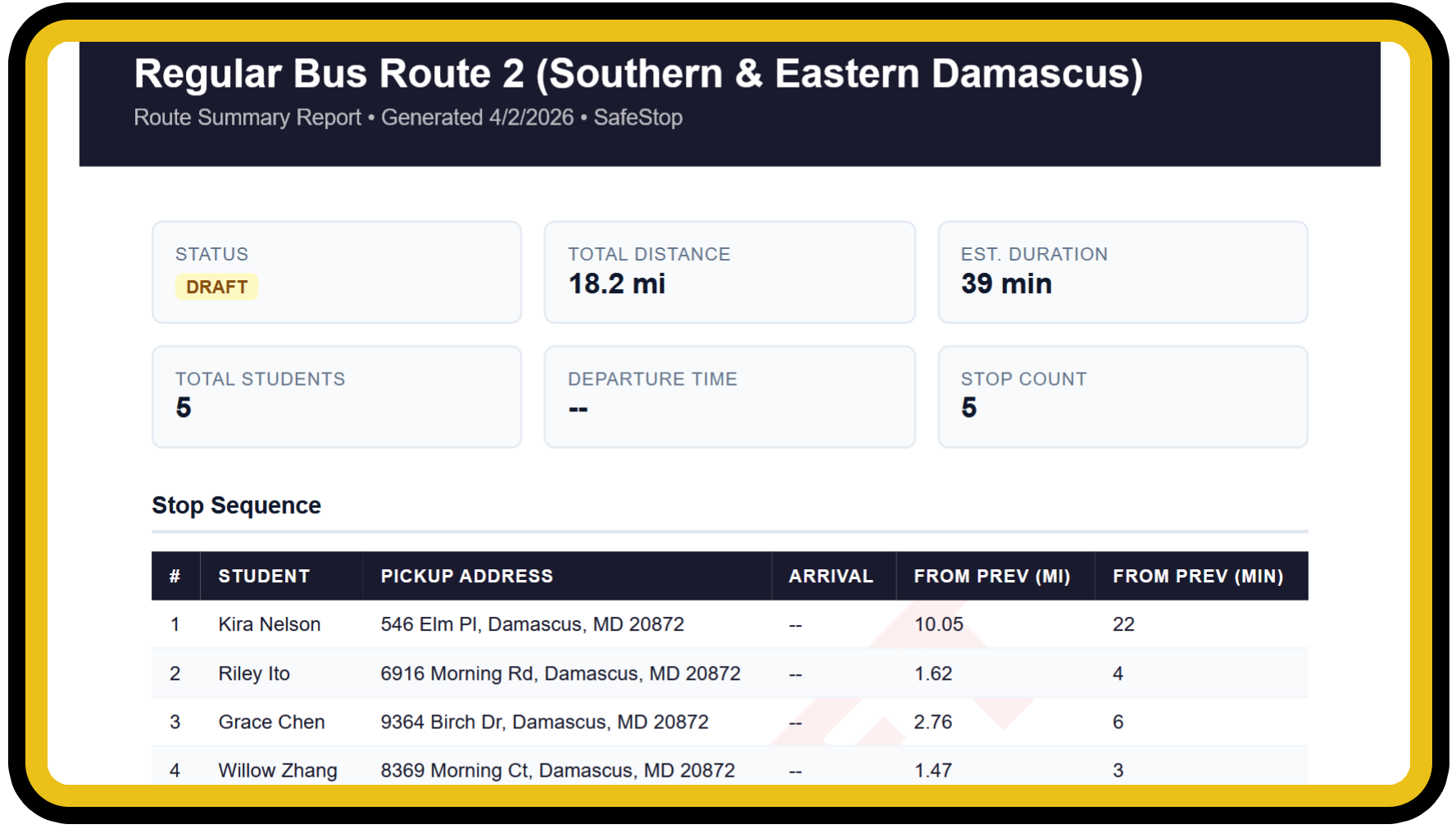
Generate route summaries, driver manifests, schematic maps, fleet reports, and run reports. PDF or HTML. Privacy controls redact student names for public copies.
Manage multiple schools, depots, and clusters within a single district. Each depot has its own fleet and routes. Transfer vehicles and routes between depots. Students are district-wide — visible regardless of which depot you're working from.
Flag students requiring special buses, wheelchair positions, or aides. Separate special needs routes automatically. Track equipment requirements per vehicle.
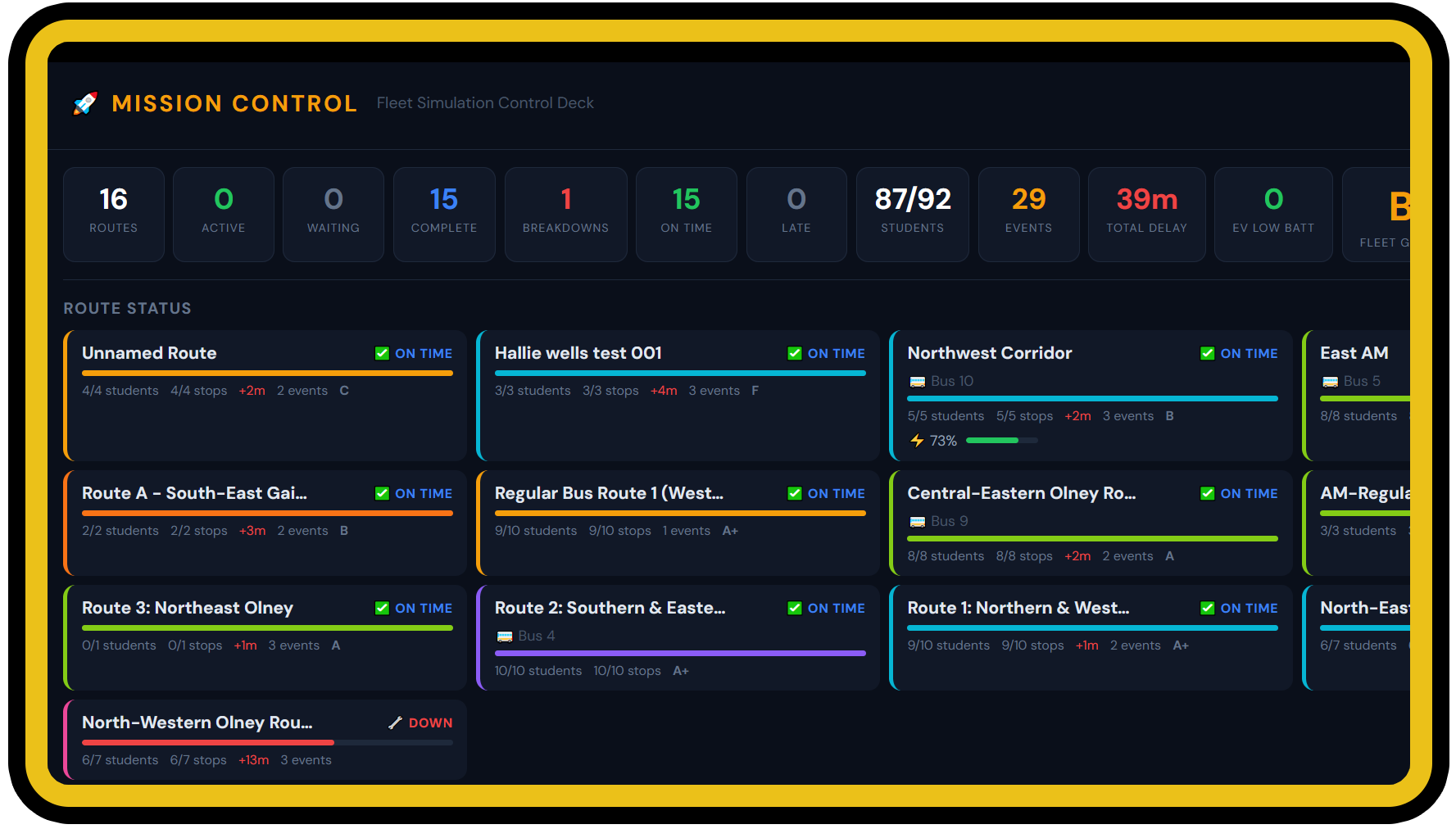
Simulate individual routes with animated bus travel and random events, or launch Mission Control to stress-test your entire fleet at once. Select which routes to include, watch live KPIs, and get scoreboard grading with EV battery tracking.
Routers submit draft routes for review. Admins approve and publish, or reject back to draft. Pending review queue with count badges keeps everyone on the same page. Full audit trail of who requested, approved, or rejected each route.
Three user roles — Admin, Router, and Viewer — with configurable access restrictions by cluster, school, or depot. District admins manage their own users. Super admins manage everything from a central admin console.
A 32-step guided tutorial walks new users through every feature — navigating the app live as it explains each tool. Draggable instruction window, progress tracking, and pause/resume support.
Draw a polygon around each school to mark the area where students walk instead of being bused. Generate a starter circle from a district-wide default radius per school level, then refine vertex by vertex. Toggle visibility per school and export large-format zone maps for school staff and parents.
Drag the Google Street View pegman onto any spot on the map to inspect intersections, bus stop locations, or driveways before placing students or finalizing a route. Verify safe sight lines, sidewalk access, and curb space without leaving the app.
Box-draw a region on the map, then export a clean B&W large-format PDF tuned for plotters. Paper sizes from Letter up to 60×96 inches, per-layer toggles to control what appears, plus scale bar, north arrow, and planner signature line. Ideal for dispatch wall maps and pre-route planning sessions.
Follow these steps to set up your district and start routing. Click each step to expand.
Add your depot, schools, and landmarks
Group schools into clusters (e.g., "North Zone", "South Zone") to organize routing by geographic area. Clusters help filter students and manage routes for specific regions of your district.
Batch import from CSV or add individually
studentId, studentName, grade, address, schoolIdspecialNeeds, specialNeedsType, requiresSpecialBus, requiresAide, pickupExtraMinutes| Flag | Effect |
|---|---|
requiresSpecialBus | Student needs a wheelchair-accessible or special vehicle |
requiresAide | Route requires an aide on the bus |
pickupExtraMinutes | Extra dwell time at this stop (e.g., wheelchair loading) |
Use map tools to create bus routes
See the Route Drawing section below for the full tutorial.
Drag, drop, or auto-assign
Select the Stop tool while drawing. Drag a student pin onto the route line or onto a placed bus stop. The student flashes green to confirm.
In the Stops tab, drag a student pill from the unassigned list onto a route card below. Or use bulk selection with checkboxes.
When you save a drawn route, students within ~350 feet of the route path are automatically assigned. Students already on other routes are never reassigned.
Assemble sections into master routes, assign buses
See the Run Builder and Fleet Management sections below.
Print manifests, review, and publish routes
See the Reports section below for all report types and options.
Draw routes directly on the map with professional-grade tools.
Before drawing, select a Start and End location from the dropdowns above the toolbar. When you finish the route, SafeStop auto-generates the fastest driving path from your start location (depot or school) to where you began drawing, and from where you stopped drawing to the end location.
Locations are organized by type: Depots first, then schools grouped by level (High, Middle, Elementary, Pre-K, Charter).
Click any route in the Routes tab to select it, then click Edit. In editing mode, the full drawing toolbar is available:
Ctrl+Z undoes the last action. Ctrl+Y redoes. This works for drawing segments, eraser strokes, bus stop placement, bus stop deletion, and student removal.
Use the Map Layers panel (left sidebar) to toggle visibility during drawing:
The Snap to Stop toggle in the Stops tab controls whether clicking a student auto-pans the map to their location.
Student stops are individual home locations imported from CSV. Each student has an address, grade, school assignment, and optional special needs flags.
Central bus stops are physical pickup points you place on the map where multiple students gather. When you drag a student to a bus stop, a dotted "walk line" appears showing the walking distance. The student's home address is preserved, but reports show the bus stop's cross-street address (e.g., "Main St & Oak Ave" or "400 block of Elm St").
Deleting a student from the map requires a two-click confirmation (click once to arm, click again within 3 seconds to confirm). Accidental deletes can be reversed with Ctrl+Z. Full undo/redo support covers drawing, erasing, student removal, and bus stop edits.
Select a school, set constraints, and let AI do the work:
A single bus often serves multiple schools in sequence. The Run Builder lets you assemble these sections into a complete bus run.
Example AM run: one bus covers high school, middle school, and elementary pickups back-to-back.
Toggle to the schedule view icon in the Runs tab header to see a Gantt-style timeline of all runs from 5 AM to 6 PM. Each row shows a run's sections as colored blocks with deadhead gaps between them.
SafeStop automatically checks for scheduling conflicts — when the same vehicle is assigned to overlapping time windows. Conflicts appear as a yellow warning banner and are highlighted in both list and schedule views.
Each run card and the Gantt view display a proportional timeline bar:
| Type | Typical Capacity | Notes |
|---|---|---|
| Standard | 72 | Full-size school bus |
| Large | 84-90 | Extended capacity |
| Special Needs | 8-12 | Wheelchair positions, aide seat |
| Electric | 48-72 | Battery tracking, range analysis |
| Electric Special Needs | 8 | EV + wheelchair + aide |
| Minibus | 24 | Smaller routes or mid-day |
| Van | 8-14 | Special ed transport, field trips |
For electric vehicles, SafeStop tracks battery capacity (kWh), range per charge (miles), charging time, and current charge percentage. When assigning an EV to a route, a range analysis shows whether the bus can complete the route on a single charge.
The fleet optimizer matches available vehicles to routes based on capacity, special needs requirements, and vehicle type. It suggests assignments and highlights conflicts.
Vehicles can be assigned to individual routes or to master routes (runs). The assignment dropdown groups options: "Runs (Master Routes)" and "Individual Routes" with section counts and student totals.
Stop sequence table with pickup addresses, arrival times, distances between stops. Includes route metadata: total distance, duration, student count, departure time.
PDF / HTMLDriver copy: Student names, IDs, and addresses. Public copy: Grade levels only (names redacted for privacy). Central bus stop addresses shown as pickup location with home address noted.
PDF / HTMLSVG/PDF map with OpenStreetMap road background, route path overlay, numbered stop markers, north arrow, scale bar, and legend. Standard 36"×24" output for wall display.
PDF / SVGTable of all routes with school, cluster, stop count, students, distance, duration, status, departure time, and bus assignment.
PDF / HTMLMaster route report with timeline visualization, section-by-section table (schools, students, times), deadhead distances, vehicle info, and per-section stop manifests.
PDF / HTMLInteractive large-format map export. Box-draw a region on the map, choose a paper size (Letter through 60×96"), toggle which layers appear, and download a B&W PDF with scale bar, north arrow, and planner signature line. Sized for any plotter or wall.
PDFPer-school walker boundary export. Shows the school location, the walker polygon, and surrounding streets. Useful for sharing with families, school staff, and the district office to communicate who is eligible for busing.
PDFTest every route against real-world conditions before the first bus rolls out.
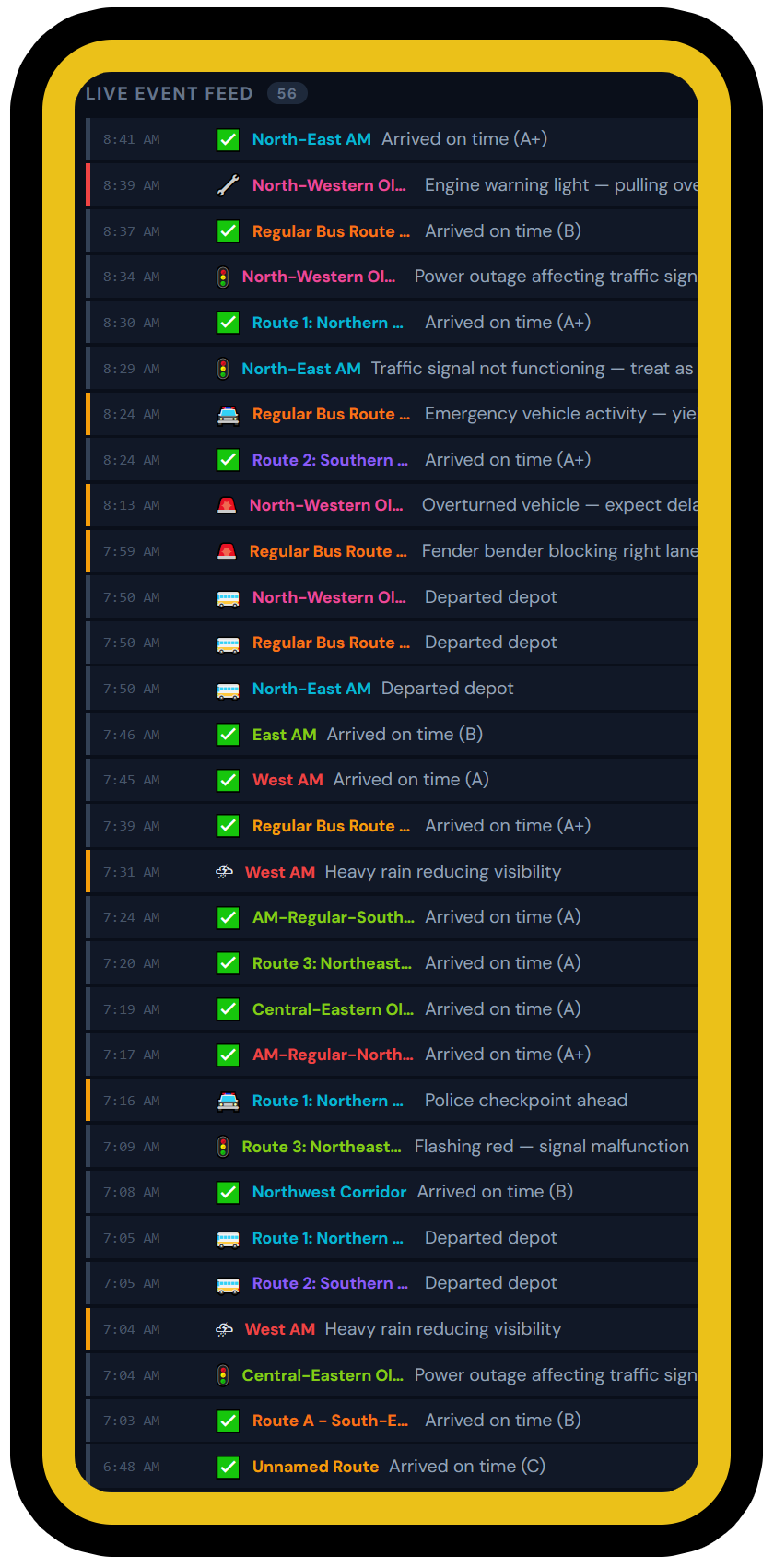
Mission Control runs all your routes simultaneously on a shared simulation clock. The KPI strip tracks active routes, delays, breakdowns, and fleet grade in real-time. The event feed streams incidents across every route as they happen.
Speed controls go up to 100x — simulate an entire morning in under a minute. Designed for hundreds of routes with no map animation, just pure statistics.
Watch an animated bus travel a route on the map in real-time with adjustable speed (1x–10x). Live stats panel, event log, and EV battery gauge update as random events unfold.
Student cancellations, traffic accidents, road closures, weather hazards, construction zones, signal outages, police activity, mechanical breakdowns, special ed equipment failures, and health emergencies.
Every simulation gets a letter grade (A+ through F). Save results to build a history per route. Use Mission Control to simulate your entire fleet and get a fleet-wide score. EV battery start/end and mid-day charging estimates included.
Simulations track battery consumption per mile, HVAC/idle drain, and warn when charge drops below the reserve threshold. Configurable starting charge, consumption rate, and charging speed in Settings.
Full-screen fleet operations deck. Launch all routes on a shared clock (up to 100x speed), monitor live KPIs, route status cards with progress bars, and a streaming event feed. Designed for hundreds of routes — no map animation, pure statistics.
Control event frequency (Minimal to Chaos), perfect run chance, per-event-type weights, school bell times, schedule variants (2-hour delay, early dismissal, half day), and EV fleet defaults — all from Settings.
We're launching soon and selecting pilot partners now. Early adopters lock in founding-member rates and get direct influence on the product roadmap. No per-student fees, no surprise overage charges.
We're selecting pilot districts for our launch. Tell us about your district and we'll share founding-partner pricing — available only during beta.
We respect your privacy. No spam, no cold calls. Information is used only to prepare your personalized quote.
We're launching soon and looking for forward-thinking districts to pilot SafeStop. Early partners get priority pricing, dedicated support, and a seat at the table shaping the product.
Tell us about your district and we'll set up a personalized demo environment for you.
Demo access requires a Google account for sign-in. We'll review your request and grant access within 24 hours.
Sign in to your SafeStop dashboard to manage routes, fleet, and students.
Sign In to SafeStopNeed help? Contact info@605media.net
© 2026 605 Media LLC. SafeStop is a registered trademark. All rights reserved.